
Complete Guide to Diagrams in Markdown
Learn when to use Mermaid, Graphviz, DOT, and Markmap in Markdown, with live code/preview examples for technical docs.
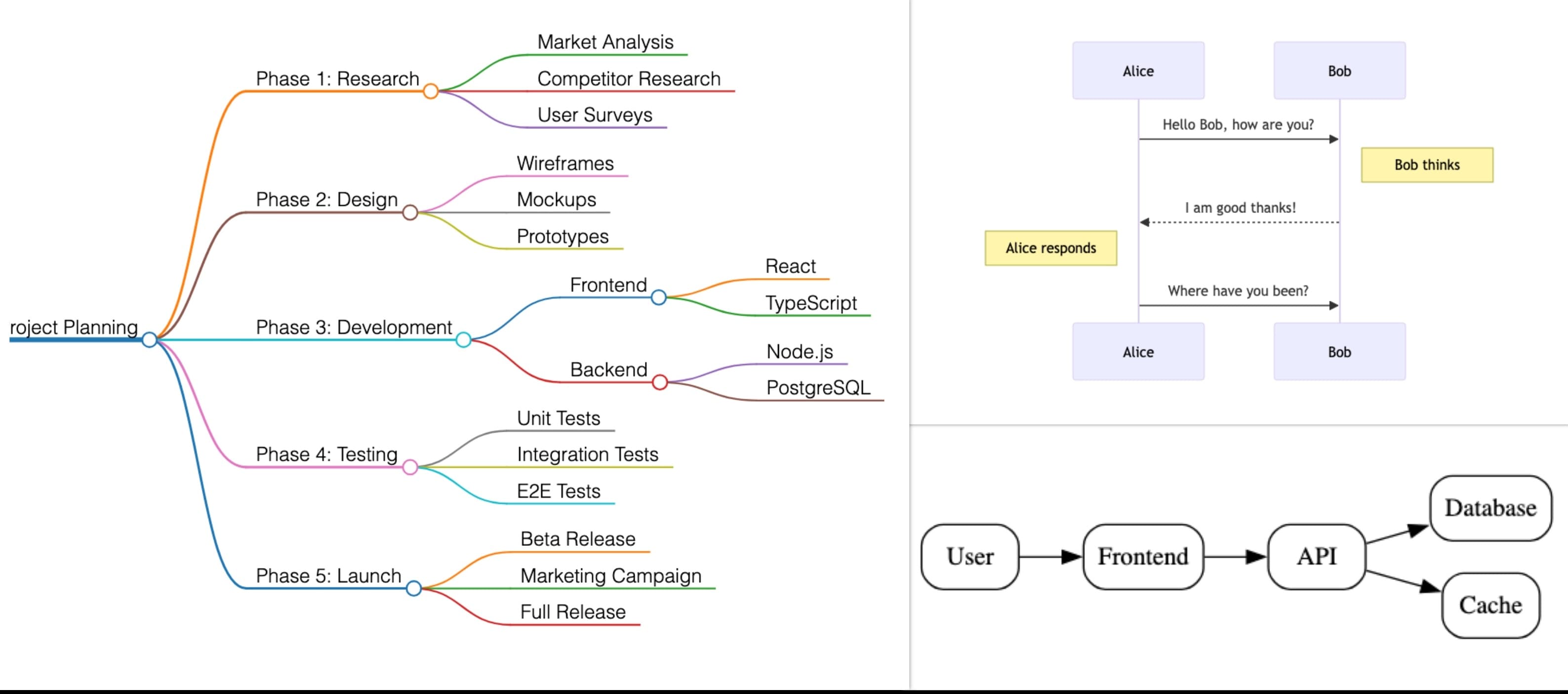
Diagrams make technical docs easier to scan, review, and maintain. The catch is that most diagram tools force a trade-off: draw in a visual editor and lose clean version control, or keep everything in text and accept a rougher authoring flow.
mdedit.ai supports text-based diagrams directly in Markdown: Mermaid, Graphviz, DOT, and Markmap. You write a fenced code block, preview the rendered diagram, and keep the source in Git with the rest of your documentation.
This guide shows when to use each format and gives you examples you can copy, preview, and adapt.
Why Use Diagrams in Markdown?
Text-based diagrams work well for engineering docs because they behave like code:
- Version control: diagram changes are diffable in Git.
- Reviewability: teammates can comment on the source in pull requests.
- Portability: the diagram definition stays inside the Markdown file.
- Automation: diagrams can render during HTML, PDF, and DOCX export.
- Speed: you do not need to leave your editor for every small update.
The best format depends on the job:
| Need | Best fit | Why |
|---|---|---|
| Flowcharts, sequence diagrams, ERDs, state charts, timelines | Mermaid | Broad syntax, easy to learn, widely supported |
| Dependency graphs, network diagrams, layout-heavy graphs | Graphviz or DOT | Strong automatic graph layout and edge routing |
| Knowledge maps, outlines, learning paths, feature trees | Markmap | Turns nested Markdown headings and lists into a mind map |
Mermaid: The Everyday Diagram Format
Mermaid is the right default for most Markdown diagrams. It covers the common cases technical teams need: flowcharts, sequence diagrams, entity relationship diagrams, state diagrams, Gantt charts, class diagrams, and more.
Flowcharts
Use flowcharts for process flows, decision trees, runbooks, and troubleshooting paths.
Loading Mermaid diagram…
Sequence Diagrams
Use sequence diagrams when the order of communication matters, such as API calls, auth flows, webhook handling, or background jobs.
Loading Mermaid diagram…
Entity Relationship Diagrams
Use Mermaid ER diagrams for database documentation that should live near migrations, models, or implementation notes.
Loading Mermaid diagram…
Gantt and State Diagrams
Mermaid is also useful for project timelines and state machines. Keep these diagrams small. They become hard to review when every task, dependency, or transition is packed into one block.
Loading Mermaid diagram…
Check source with the Mermaid validator, or export it as PNG, SVG, WebP, or PDF.
Graphviz and DOT: Graphs With Better Layout Control
Graphviz is best when the shape of the graph matters more than the diagram category. It is especially useful for dependency graphs, infrastructure maps, service topology, and complex directed relationships.
Use Graphviz or DOT when Mermaid starts to feel too constrained, or when automatic layout is the hard part.
Loading Graphviz diagram…
DOT is the graph description language used by Graphviz. In mdedit.ai, both graphviz and dot fenced code blocks can be used for graph rendering.
Loading Graphviz diagram…
Export Graphviz/DOT source as PNG for broad compatibility or SVG for a scalable graphic.
Markmap: Mind Maps From Markdown
Markmap turns Markdown headings and nested lists into a mind map. It is a better fit for outlines than for exact system behavior.
Use it for knowledge maps, planning trees, feature breakdowns, onboarding paths, and documentation outlines.
Export the mind map as PNG or SVG.
How to Add Diagrams in mdedit.ai
The workflow is the same for every diagram type:
- Create a fenced code block.
- Set the language to
mermaid,graphviz,dot, ormarkmap. - Write the diagram source.
- Use preview to check the rendered output.
- Export when ready.
Here are the minimal block forms:
```mermaid
flowchart TD
    A --> B
```

```graphviz
digraph G {
    A -> B
}
```

```dot
graph G {
    A -- B
}
```

```markmap
# Root
## Branch 1
## Branch 2
```
Best Practices
Pick the Smallest Useful Diagram
Diagrams are most valuable when they clarify one idea. If a diagram needs a legend, six colors, and a paragraph of explanation, split it into smaller diagrams or move detail into prose.
Keep Labels Reviewable
Use labels that match the system language your team already uses. Prefer API, Worker, and Queue over clever abbreviations. When a diagram appears in a PR, reviewers should understand the source and the rendered output.
Use the Right Format
- Use Mermaid for common diagram types and docs that may also render on GitHub.
- Use Graphviz/DOT for complex graph layout, topology, dependencies, and dense relationship maps.
- Use Markmap for outlines and hierarchical thinking.
Keep Export in Mind
Interactive diagrams are useful while writing, but exports need to be stable. Keep diagrams readable at document width, avoid tiny labels, and test PDF or DOCX export for important customer-facing documents.
Export Behavior
When you export from mdedit.ai:
- HTML export: diagrams render as embedded images.
- PDF export: diagrams appear as high-resolution images.
- DOCX export: diagrams are included inline.
- Markdown export: the original fenced code blocks are preserved.
That combination keeps documents portable: the source remains Markdown, and exported formats still look polished.
Frequently Asked Questions
What is the best tool for diagrams in Markdown?
Mermaid is the best default because it covers the most common technical diagram types and is easy to read in source form. Use Graphviz or DOT for layout-heavy graphs, and use Markmap for hierarchical outlines.
How do I add a flowchart to Markdown?
Create a fenced code block with mermaid as the language and write Mermaid flowchart syntax inside it. mdedit.ai renders it automatically in preview.
Can I export Markdown diagrams to PDF or Word?
Yes. mdedit.ai renders diagrams into exported PDF, HTML, and DOCX files. Markdown export preserves the original diagram source.
Are Markdown diagrams compatible with GitHub?
Mermaid is widely supported on GitHub and GitLab. Graphviz, DOT, and Markmap often need a renderer, so mdedit.ai is useful when you need reliable previews and exports for those formats.
Can I style Mermaid diagrams?
Yes. Mermaid supports style rules in the diagram source:
Loading Mermaid diagram…
Related Articles
- Diagram Tools - Compare Mermaid, Graphviz/DOT, and Markmap workflows
- Use Mermaid.js in the Markdown Editor - More Mermaid examples
- AI-Powered Markdown Editor for Tech Writers - Markdown editing and export workflows
- Enhanced Table Support - Tables in technical writing
Wrapping Up
Text-based diagrams solve a practical documentation problem: your visuals stay close to the code and prose they explain.
Start with Mermaid for common diagrams, use Graphviz or DOT when layout becomes the hard part, and use Markmap for outlines. In mdedit.ai, all of them can live inside normal Markdown files with live preview and export support.