
How to create a resume in Markdown and save it as PDF
Write a portable resume in Markdown, preview a print-ready layout, and use your browser to save the result as PDF without giving up the source file.
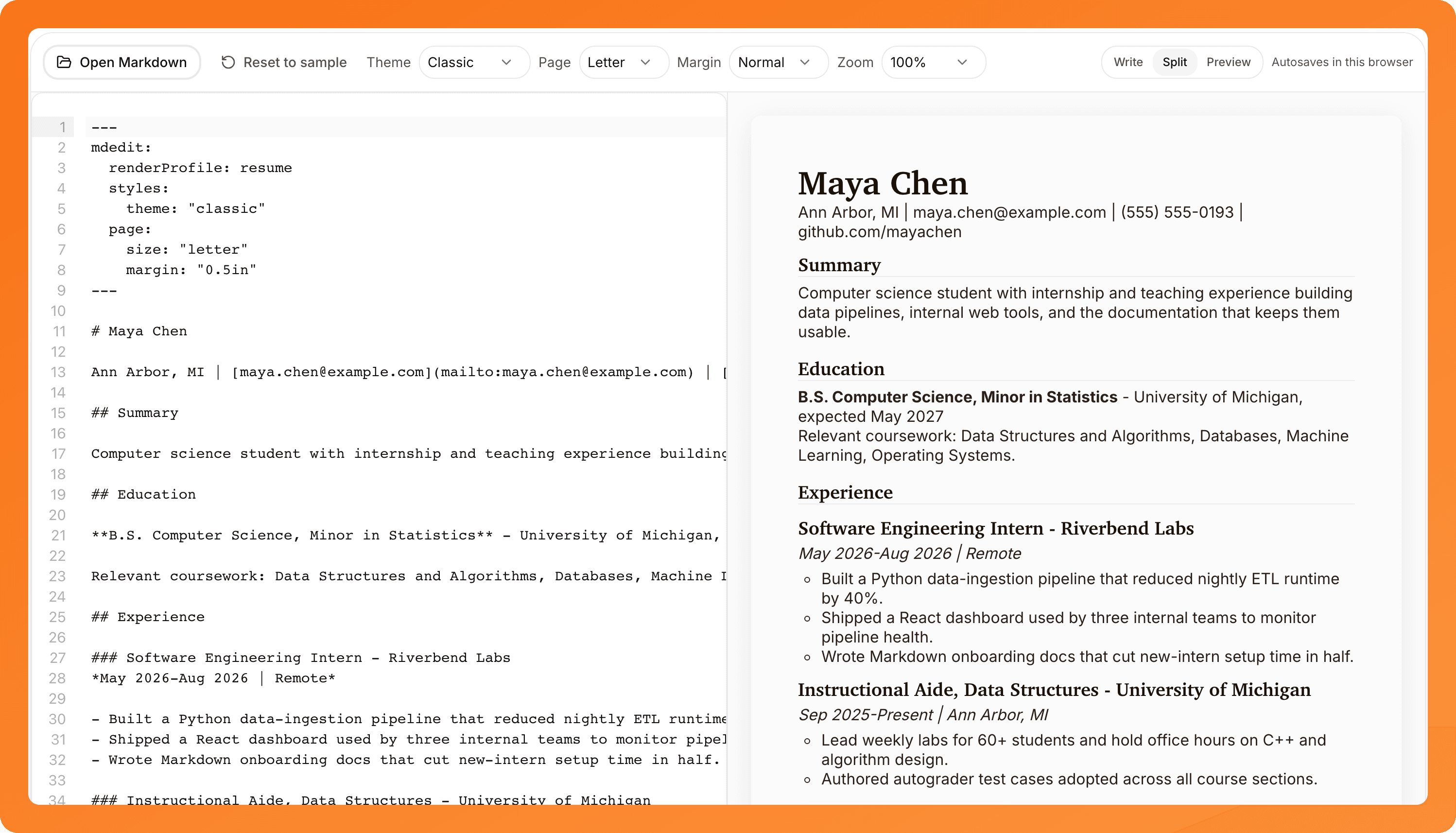
A Markdown resume separates the content you own from the layout you print. Your experience, education, and skills stay in a readable text file; a resume renderer turns that source into a page you can review and save as PDF.
This guide uses mdedit.ai's public builder, but the sample remains ordinary Markdown that you can keep in version control or open in another text editor.
Open the Markdown Resume Builder
A portable Markdown resume sample
Copy this source into a file named resume.md. The mdedit frontmatter selects the resume renderer, Classic theme, Letter paper, and a half-inch margin. The body stays plain Markdown.
---
mdedit:
  renderProfile: resume
  styles:
    theme: classic
  page:
    size: letter
    margin: 0.5in
---

# Maya Chen

Ann Arbor, MI · maya.chen@example.com · [github.com/mayachen](https://github.com/mayachen)

## Summary

Computer science student with internship and teaching experience building data pipelines, internal web tools, and the documentation that keeps them usable.

## Education

**B.S. Computer Science, Minor in Statistics** - University of Michigan, expected May 2027

Relevant coursework: Data Structures and Algorithms, Databases, Machine Learning, Operating Systems.

## Experience

### Software Engineering Intern - Riverbend Labs

*May 2026-Aug 2026 · Remote*

- Built a Python data-ingestion pipeline that reduced nightly ETL runtime by 40%.
- Shipped a React dashboard used by three internal teams to monitor pipeline health.
- Wrote Markdown onboarding docs that cut new-intern setup time in half.

### Instructional Aide, Data Structures - University of Michigan

*Sep 2025-Present · Ann Arbor, MI*

- Lead weekly labs for 60+ students and hold office hours on C++ and algorithm design.
- Authored autograder test cases adopted across all course sections.

## Projects

### CampusCourses - Course planning web app

- Next.js and PostgreSQL app used by 2,000+ students; refreshes catalog data nightly and flags schedule conflicts.

## Skills

Python · TypeScript · C++ · SQL · React · Git · pandas · scikit-learn
Use compact instead of classic for the Compact theme. Older resumes that say resume-template-1 still render as Classic, so there is nothing to migrate. Change letter to a4 when that paper size is the better fit for your destination.
1. Open or paste the source
Open the Markdown Resume Builder. Paste the sample into the editor, or choose Open Markdown and select your .md or .markdown file.
The builder adds the resume render profile if an opened file does not already have it. Keep the headings and bullets simple if you want the file to remain useful outside mdedit.ai.
2. Review the layout, not just the words
Choose Write, Split, or Preview depending on the screen width. Then check:
- Whether the Classic or Compact theme fits the amount of content.
- Whether Letter or A4 matches the destination where the resume will be printed or reviewed.
- Whether the chosen margin keeps every section readable.
- Whether links, dates, headings, and bullet wrapping still make sense at page width.
Split view, shown above, keeps the source and the print layout side by side on a wide screen. On a narrow screen, switch between Write and Preview instead so the controls and the page stay usable without squeezing both panes onto one screen.
3. Keep the source
Choose Download Markdown before or after printing. That .md file is the portable version you can edit later, diff in Git, or move to another Markdown tool.
You can also choose Download styled HTML when you need an HTML file that uses the same resume rendering path.
4. Save the resume as PDF
- Choose Print / Save as PDF in the builder.
- In the browser or operating-system print dialog, select its PDF destination.
- Turn off Headers and footers in the dialog's options; left on, it stamps the page URL and the current date onto your resume.
- Confirm paper size, orientation, margins, and page count.
- Save the file, then open the PDF once to check page breaks, links, and the final filename.
This is a browser print workflow, not a one-click direct PDF export. The resume profile does not offer DOCX or a server-generated PDF.
What stays local, and what does not
The anonymous draft is stored in the browser. Opening a local Markdown file does not upload it. The source is sent to mdedit only if you choose Save to mdedit and complete the account handoff.
The builder is still a web page, so do not treat it as a no-network promise. A resume can also request remote CSS only when its frontmatter explicitly opts in with allowRemoteCss: true; a request to that host can expose ordinary network metadata such as IP address and User-Agent. Prefer built-in themes or inline CSS when portability and predictable rendering matter.
Continue in the account-backed editor
Choose Save to mdedit when you want the same resume source in an account-backed document with folders, sharing, and sync. The editor's Resume mode uses the same renderer and frontmatter contract as the public builder.
Read the Markdown resumes documentation for frontmatter options, inline and remote CSS behavior, output expectations, and print troubleshooting.
Quick checklist
- Keep one
.mdfile as the source of truth. - Use Classic or Compact, and explicitly set Letter or A4.
- Review wrapping and page breaks in Preview.
- Download the Markdown source.
- Use the browser print dialog to save and inspect the PDF.
- Avoid claims about ATS performance unless you have tested the exact hiring system and document.