
Complete Guide to Export and Publishing in mdedit.ai
Learn when to use Share for links, downloads, Gists, and S3 copies, and when to use Publish for connected external destinations.
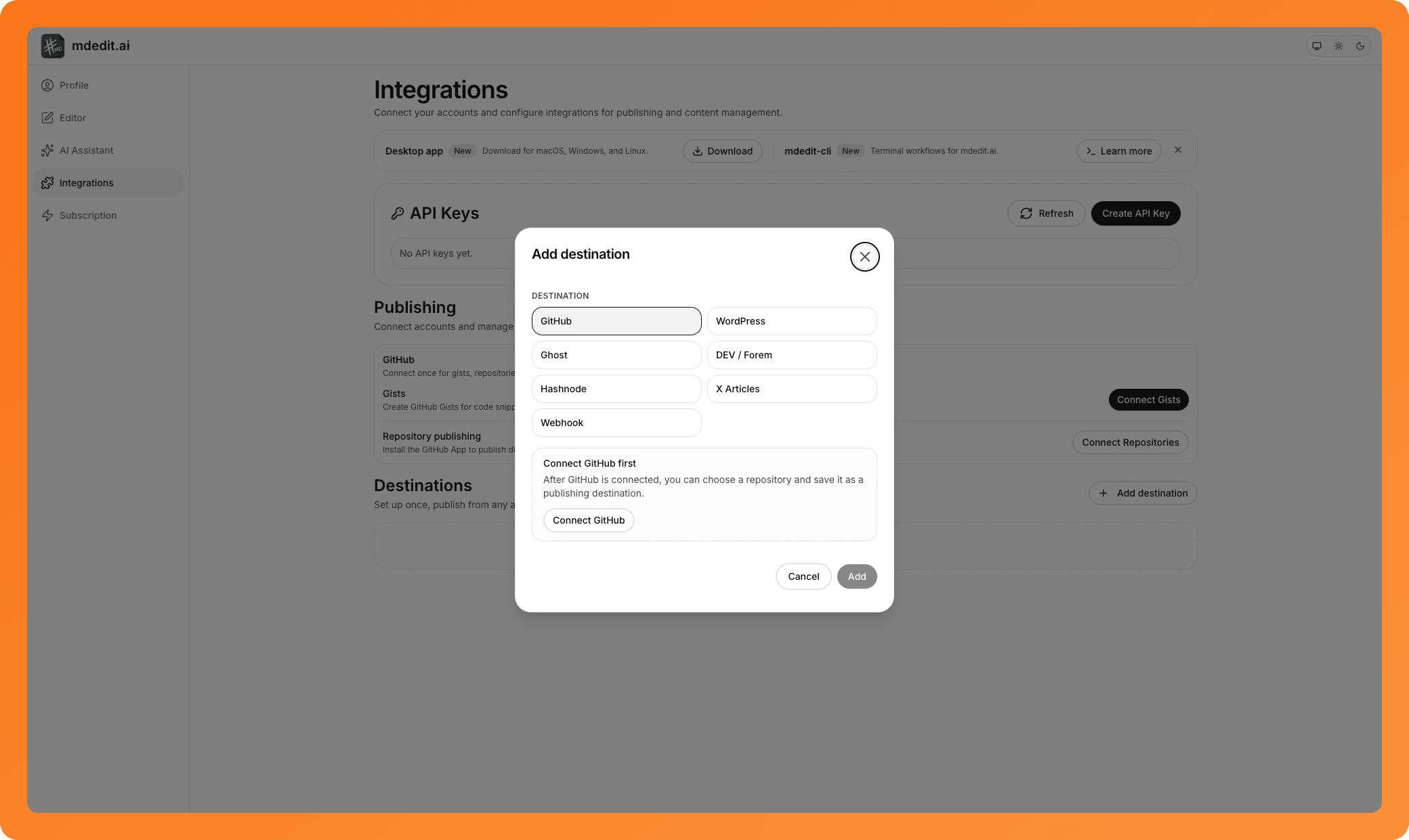
Exporting a file and publishing to a website are different jobs. mdedit.ai keeps them in separate flows so you can see exactly what each action will create.
Use Share for collaboration, a public mded.it link, a one-off GitHub Gist or AWS S3 copy, and local copy or download options. Use the separate Publish flow for connected destinations such as WordPress, Ghost, DEV, Hashnode, X Articles, a GitHub repository, or a custom webhook.
Table of Contents
- Share vs. Publish
- Share and Export Options
- External Publishing
- Common Use Cases
- Getting Started
- Frequently Asked Questions
Share vs. Publish
The Share dialog keeps three outcomes distinct:
- Collaborate: Invite another mdedit.ai user to the working document.
- Public link: Create a stable, view-only
mded.itlink. Live links follow saved changes; snapshots stay fixed until you update them. - One-off copy: Create a GitHub Gist or AWS S3 file, or open Copy or download for a local export. These copies do not stay synchronized with the document.
The separate Publish flow sends the article to a saved external destination. Connections and reusable destination settings live under Settings → Integrations.
Share and Export Options
Local Computer
Open Share, then choose Copy or download. Common options include Markdown, HTML, PDF, DOCX, and Print, with additional formats available under More formats. Format availability can depend on your plan and document type.
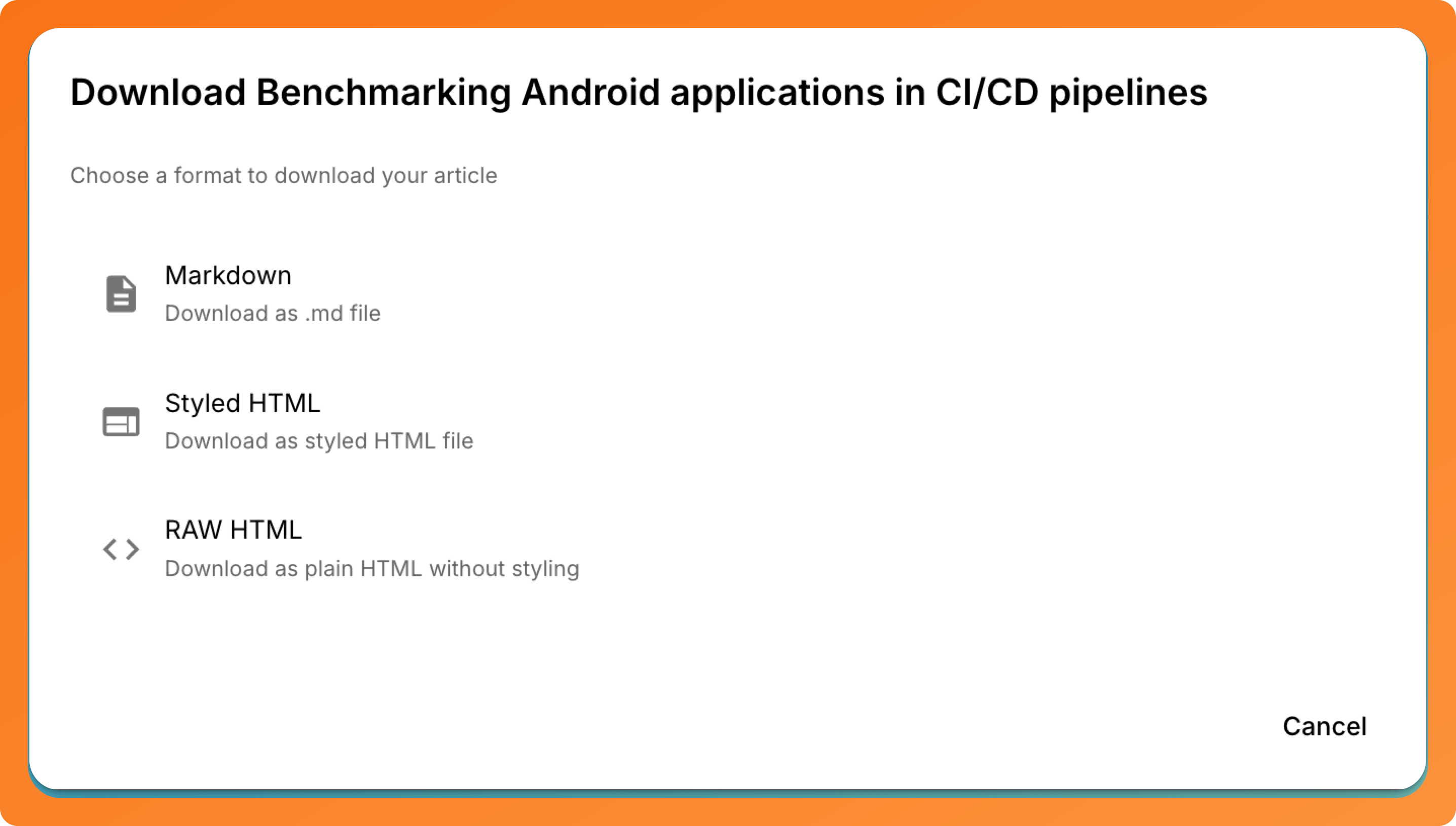
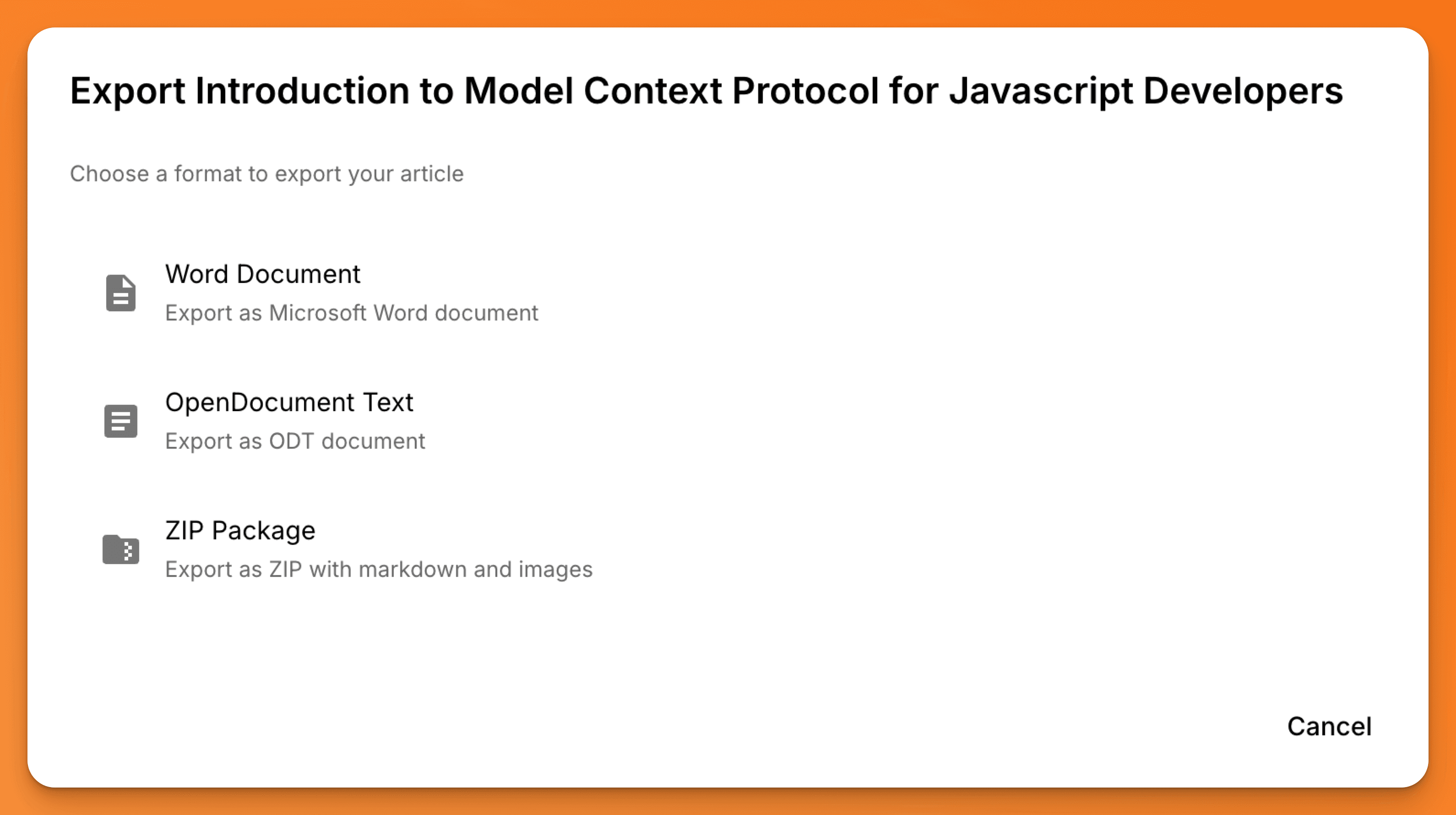
The extended export list includes packages and document formats such as EPUB, ZIP, PowerPoint, ODT, LaTeX, and plain text when the corresponding feature is available.
GitHub Gist
The One-off hosted copy section can create a public or secret GitHub Gist in Markdown or HTML. It is a separate file; later document edits do not update it.
AWS S3
The same section can create a public Markdown or HTML file in AWS S3. Like a Gist copy, mdedit does not update or remove it later.
External Publishing
Use Publish, not Share, to send an article to a connected external destination. mdedit.ai currently supports:
- GitHub repositories
- WordPress
- Ghost
- DEV / Forem
- Hashnode
- X Articles
- Custom webhooks
Configure a destination once in Settings → Integrations. From an article, open Publish, choose a saved destination, review the preview and publication state, then publish immediately or schedule it when that destination supports scheduling.
Common Use Cases
- Send a draft for review: Invite a collaborator or create a view-only public link.
- Keep a portable copy: Download Markdown, PDF, DOCX, or a ZIP package.
- Create a one-off hosted file: Use a GitHub Gist or AWS S3 copy.
- Maintain a publishing destination: Publish to WordPress, Ghost, DEV, Hashnode, X Articles, a GitHub repository, or a webhook.
Getting Started
- Open Share when you need collaboration, a public link, a Gist or S3 copy, or a local export.
- Choose Copy or download when you need a file or paste-ready content.
- Open Publish when the article should go to an external publication.
- If no publishing destination exists yet, add one under Settings → Integrations, then return to the article and publish.
Frequently Asked Questions
How do I publish to WordPress from mdedit.ai?
Connect WordPress and save it as a destination under Settings → Integrations. Return to the article, open Publish, select the WordPress destination, review the preview and publication state, and confirm the publication.
What's the difference between HTML and Styled HTML export?
HTML exports clean, semantic HTML without styling, which is perfect for embedding in existing websites with your own CSS. Styled HTML includes inline styles and formatting, ready to use standalone or copy-paste into platforms that accept HTML.
Can I export with images bundled locally?
Yes. Open Copy or download, expand More formats, and choose ZIP package. The export bundles the Markdown document and its portable assets for offline use or a self-contained handoff.
How do I connect a publishing destination?
Go to Settings → Integrations, connect the required account or credentials, and add a destination. Saved destinations appear in the separate Publish flow, not in Share. GitHub Gist and AWS S3 remain one-off hosted-copy options inside Share when available.
What format should I use for documentation?
Use Markdown when the document will stay editable or live in version control. Use PDF or DOCX for a fixed handoff, and a ZIP package when Markdown and its assets need to travel together.
For a one-off file conversion outside a saved mdedit document, use the focused Markdown to PDF or Markdown to Word tool. To recover editable content from an existing document, start with PDF to Markdown or Word to Markdown; each page explains the structure and media that may need cleanup.
Can I publish to multiple platforms at once?
Each publication targets one saved destination. To publish the same article elsewhere, run the Publish flow again and choose another destination.
Does exporting to PDF preserve diagrams and code formatting?
Yes! Diagrams created with Mermaid, Graphviz, and Markmap are rendered as high-quality images in PDF exports. Code blocks maintain syntax highlighting and formatting for professional-looking documentation.
Can I schedule automatic exports or backups?
Share does not schedule recurring exports or backups. External publications can be scheduled from the Publish flow when the selected destination supports it.
Related Articles
- How to Create a Resume in Markdown and Save It as PDF - Follow the resume-specific Markdown, styled HTML, and browser print workflow
- AI-Powered Markdown Editor for Tech Writers - Explore all mdedit.ai features
- Complete Guide to Diagrams in Markdown - Learn about diagram exports
- Enhanced Table Support - Master table features
Use Share when another person or file needs a copy. Use Publish when an external destination should receive the article. Try mdedit.ai, no signup needed.