API Keys
API keys let you authenticate to mdedit.ai without signing in interactively. They’re intended for the mdedit.ai CLI, direct API usage, and agent integrations such as the mdedit MCP server.
Create an API key
- Open mdedit.ai.
- Go to Settings → Integrations → API Keys.
- Click Create API Key.
- Enter a name (optional: description + expiration).
- Click Create.
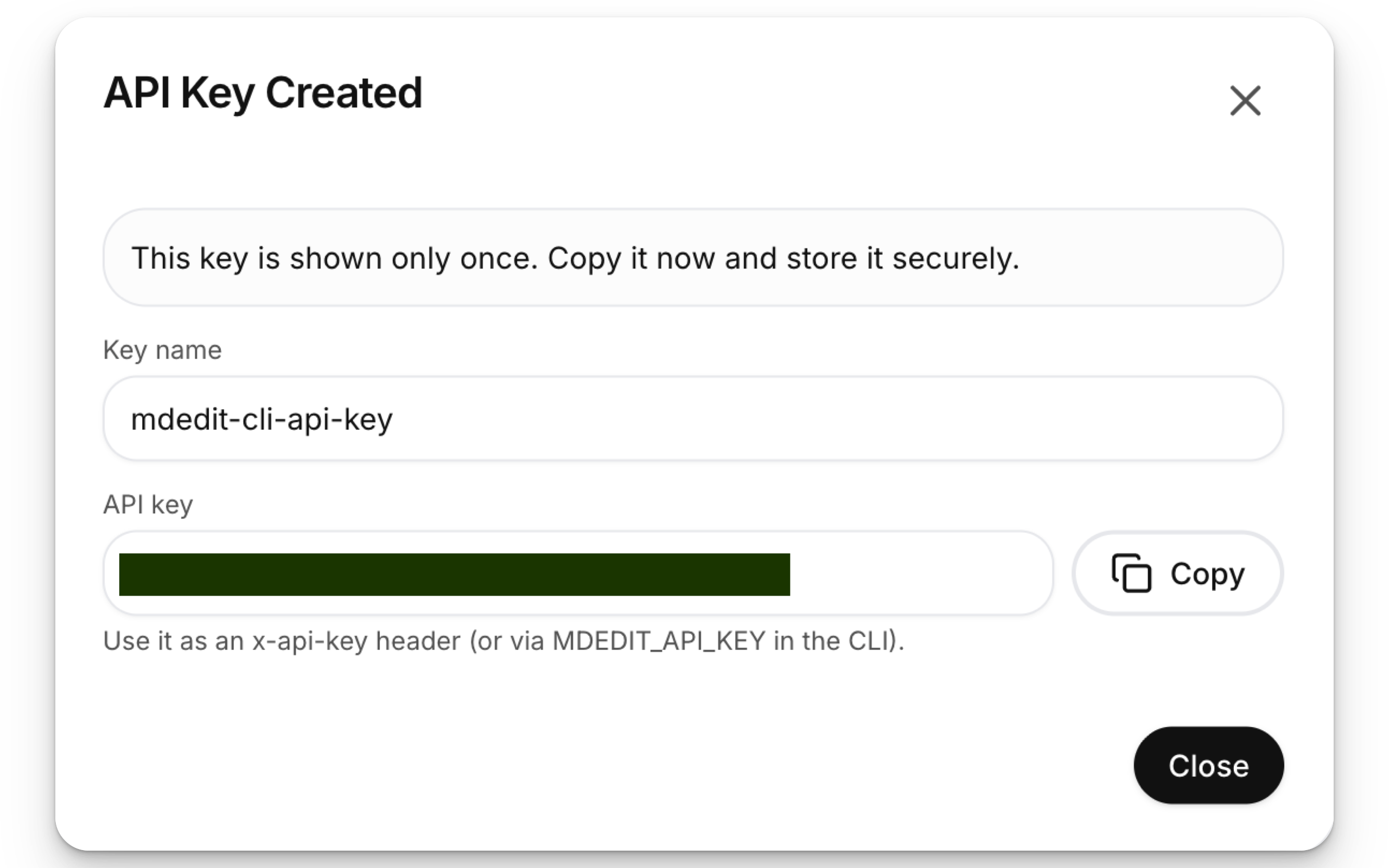
- Copy the key and store it somewhere safe — it’s shown only once.
Use your API key
- HTTP: send it as an
x-api-keyheader. - CLI: set it as
MDEDIT_API_KEY(or paste it when the CLI asks). - MCP server: pass it as
MDEDIT_API_KEYin the local MCP server environment.
For automation, create a least-privilege key in Settings → Integrations → API Keys: the Access field offers Full access or Conversions only (conversions:execute). Keys with other scope combinations are created through the API's POST /api-keys endpoint by passing a scopes list. The CLI can use existing keys, list keys, and revoke keys, but it does not create new keys.
Manage API keys
In Settings → Integrations → API Keys you can:
- View your keys (name, prefix, created date, last used, expiration)
- Revoke a key (it stops working immediately)
- Delete a revoked/expired key from the dashboard (permanent)
Permissions and scopes
The API calls documents articles; the names refer to the same resource. For scoped keys, a request is denied unless the key has every required scope, and a resource's write scope also satisfies its read scope. Public mdedit.ai scopes include:
articles:readandarticles:writereviews:readandreviews:writeworkspaces:readandworkspaces:writefolders:readandfolders:writetemplates:readandtemplates:writepublishing:readandpublishing:writeconversions:execute— run document conversions through the Conversions API,mdedit convert, and the MCPconvert_documenttool
keys:manage permits API key management and should be reserved for trusted administrative automation. To prevent privilege escalation, a scoped key cannot create an unscoped key or grant keys:manage; use an interactive user session in the web app for those operations.
Public-link publishing is a separate permission from editing. Add publishing:write
only to keys that should be able to make a document public, switch its Live/Snapshot
mode, update a Snapshot, retry a Live synchronization, or unpublish it.
publishing:write also satisfies publishing:read.
For agent workflows, a new CLI or MCP public link defaults to Live: later durable document edits update the same public URL. Choose Snapshot explicitly for a frozen artifact. Existing links remain Snapshots until the owner or agent explicitly changes their mode.
Keys created in Settings, along with legacy keys that have no explicit scopes, retain full API access for backward compatibility. Rotate them into scoped keys when practical.
Treat every key like a password:
- Don’t share or commit them to git.
- Use separate keys per device/CI job and rotate them if you suspect a leak.
Related
Last reviewed