Create your first document
This walkthrough takes you from a new account to a result you can share. You do not need to configure a workspace or understand sync before you begin.
1. Create an account or sign in
Open app.mdedit.ai (opens in a new tab) and choose Sign up or Sign in. mdedit.ai creates a default workspace for your documents.
2. Create a document
From the documents dashboard, choose New → Document from Scratch. To start with an outline, choose New → Document from Template instead. If your content already exists in Word, Google Docs, Notion, Obsidian, PDF, or another supported format, choose New → Import Document and follow Import documents.
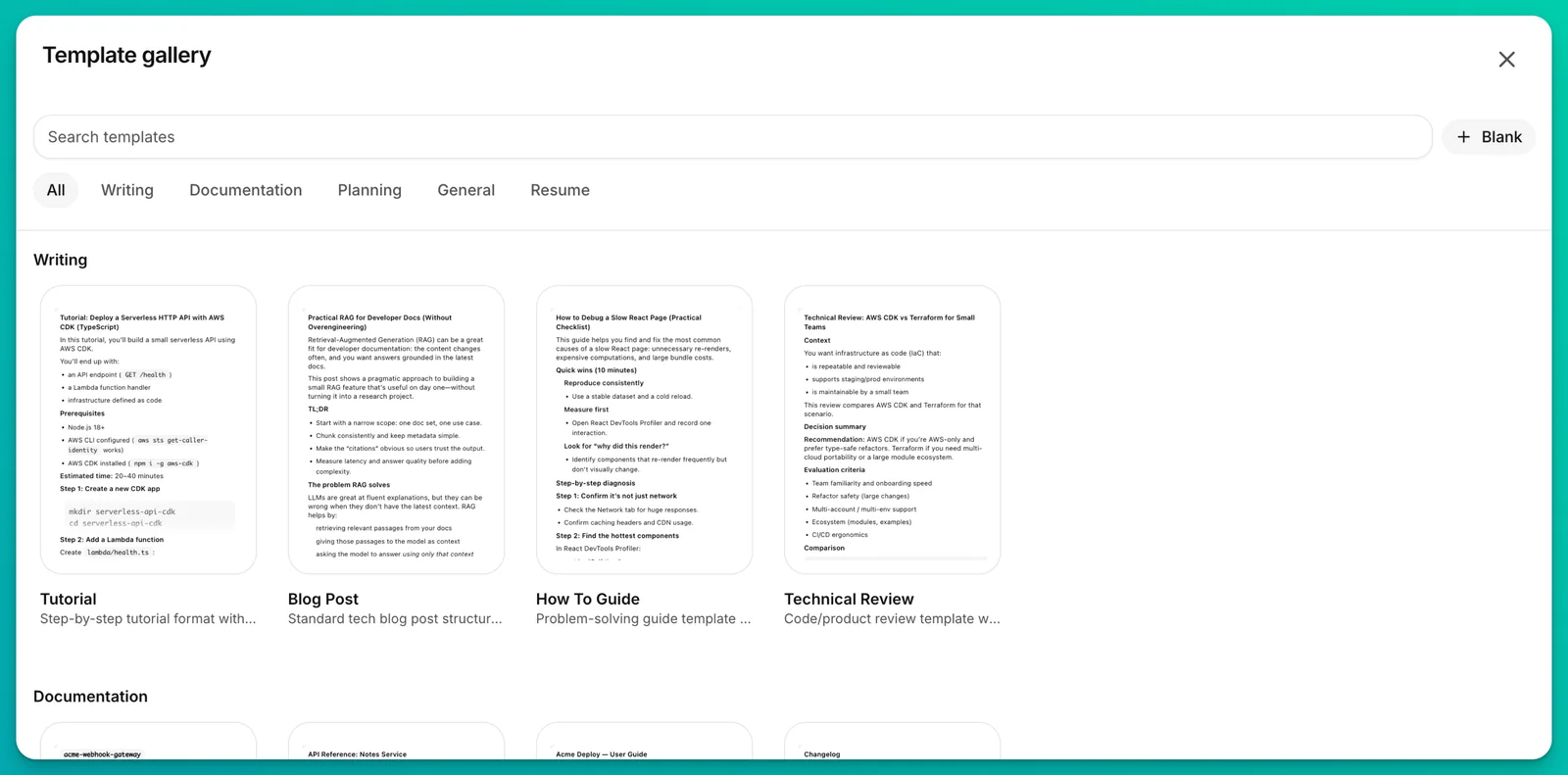
Give the document a clear title. You can move it into a folder later.
3. Write with live preview
Type Markdown in the editor and use the toolbar for links, images, tables, code, and formatting. The View mode control switches between four modes:
- Live Preview renders headings, emphasis, lists, and other Markdown in place as you type, and shows the Markdown syntax again on the line you are editing.
- Source shows the raw Markdown with syntax highlighting.
- Split shows the source beside the rendered result. It needs a desktop-width window; on a phone it switches to Reading.
- Reading shows the rendered document only.
Each editor window shows one document at a time; there are no document tabs or side-by-side documents. Switch documents from the files sidebar or the documents dashboard.
To find or replace text in the document, press Cmd/Ctrl + F in Live Preview, Source, or Split.
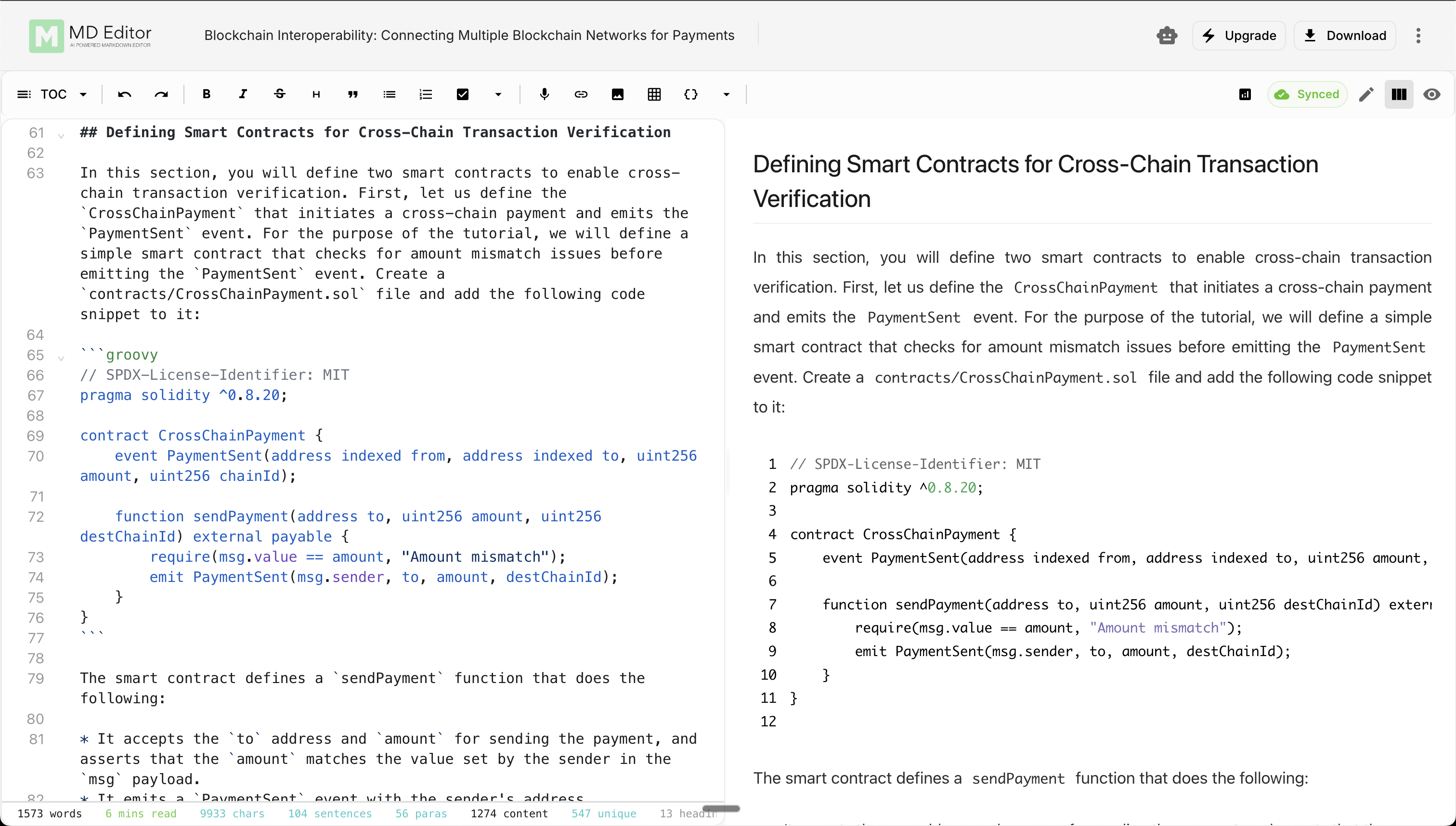
To try AI, select a sentence, open the assistant from the selection menu, and choose Improve. Review the proposed change before applying it. See AI writing for every action and assistant mode.
4. Check save and sync status
The status indicator reports what happened to your latest edit:
- Changes saved locally means the edit is safely stored in this browser and is still waiting to sync.
- Syncing means mdedit.ai is sending the latest local changes to the cloud.
- All changes synced means the cloud copy has caught up with the local document.
- Offline means you can keep writing; sync resumes after the connection returns.
- Local means Sync Documents is off, so the document stays in this browser.
- Sync Limit means your plan already has its allowed number of cloud-synced documents. Your local edits remain available; open the indicator to choose what to sync or upgrade.
- Conflict means the local and cloud copies diverged. Review the choices before replacing either copy.
For the full behavior, see Offline & sync and Plans & limits.
5. Export or share
Open Download for a Markdown, HTML, PDF, DOCX, or other supported file. Open Share to invite another mdedit.ai user or create a public hosted copy.
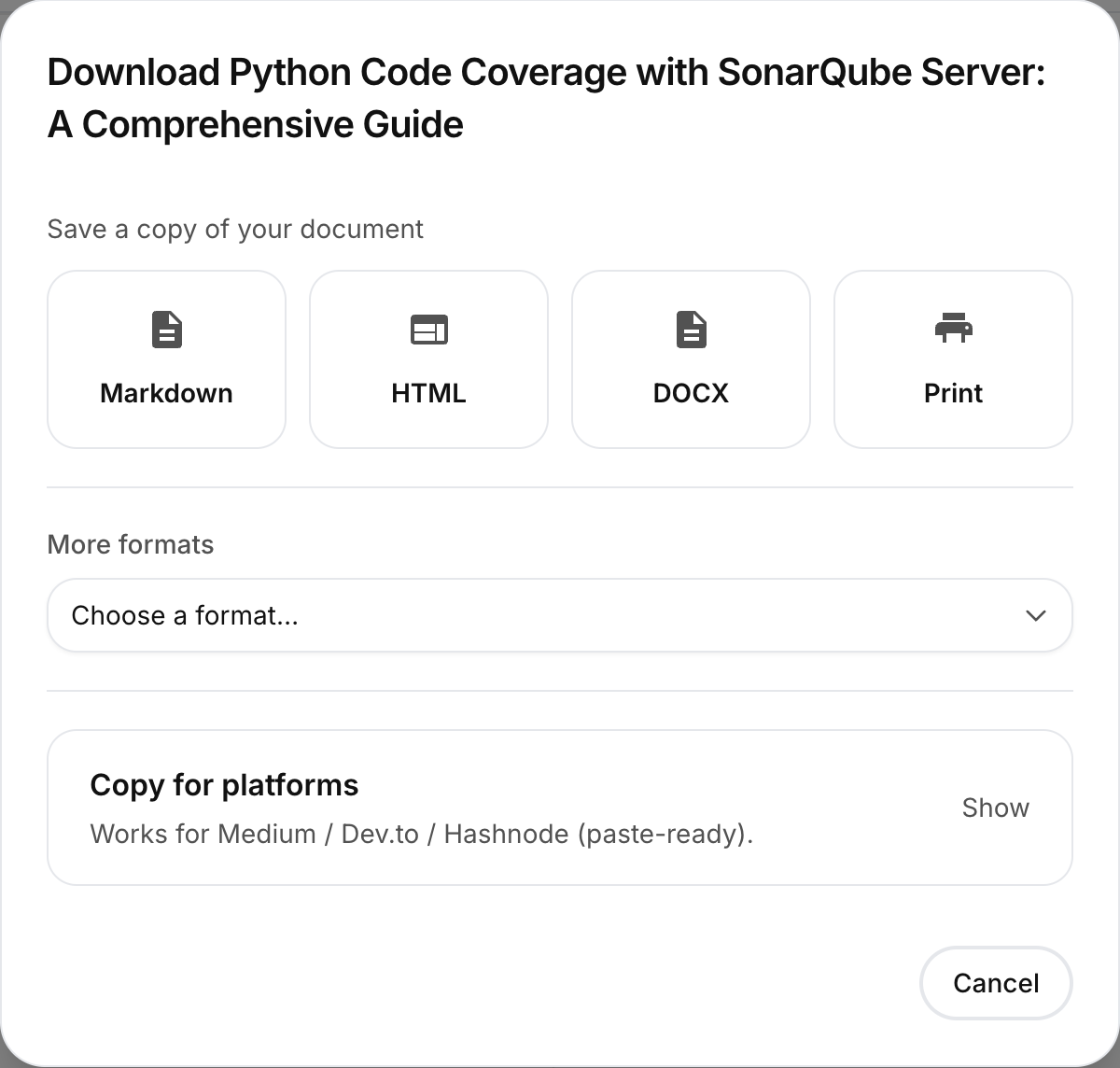
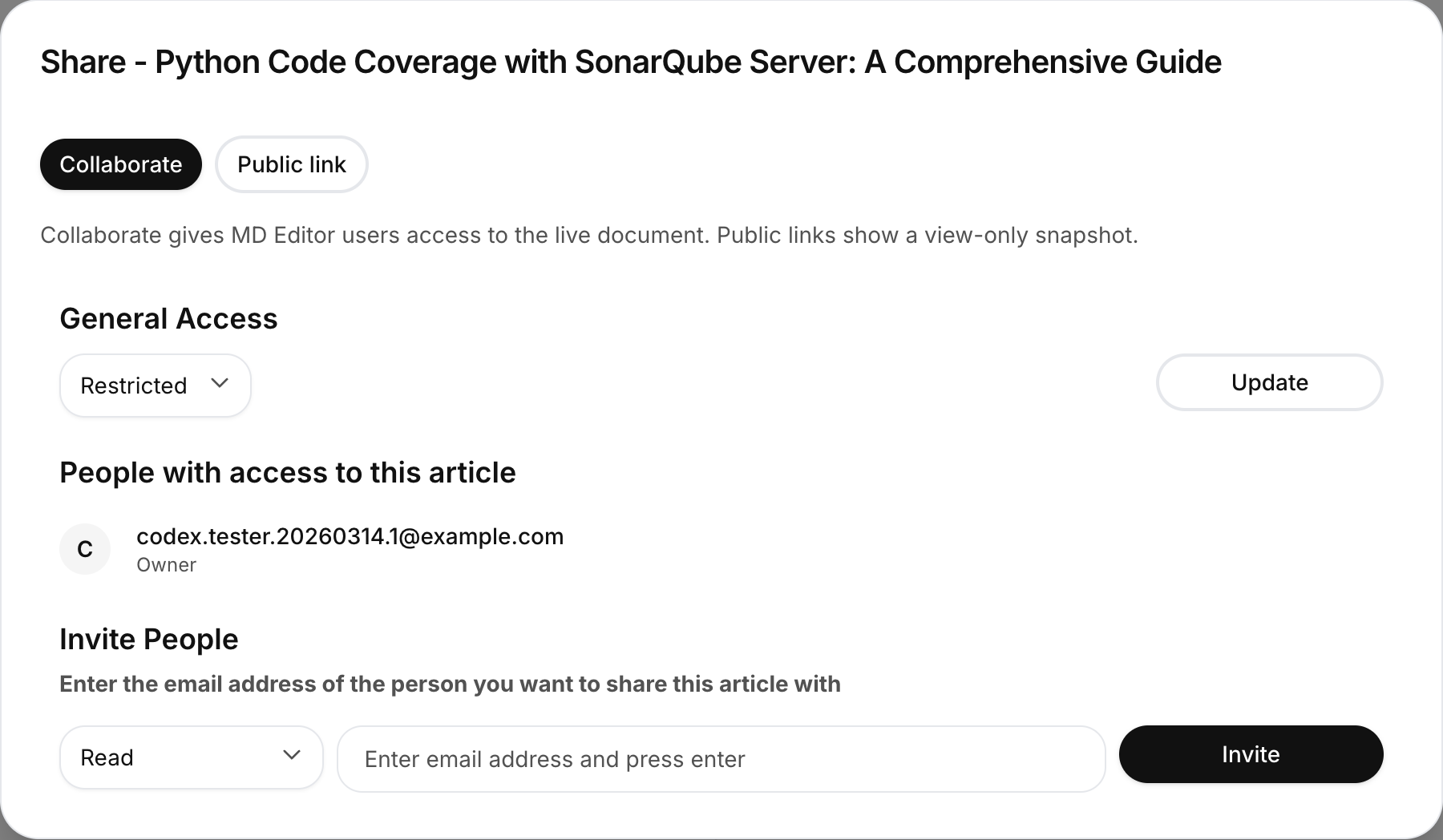
Choose the route that matches the recipient:
- Send a file: File exports
- Work together in the document: Live collaboration
- Publish a public or connected copy: Public links & publishing
You now have a synced document and a shareable result. Next, use folders, save a reusable template, or learn the keyboard shortcuts.
Last reviewed