Markdown Viewer & Reader
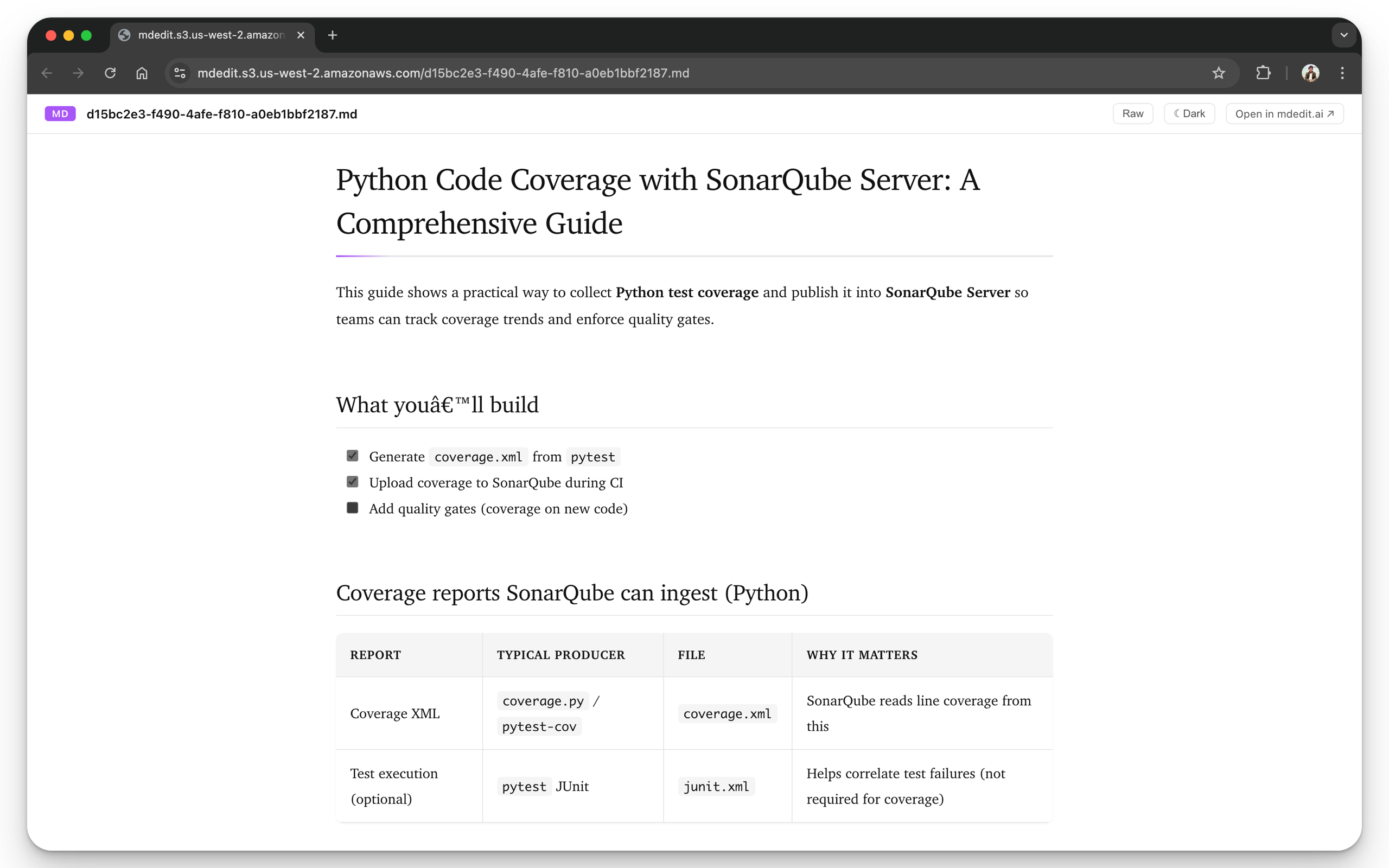
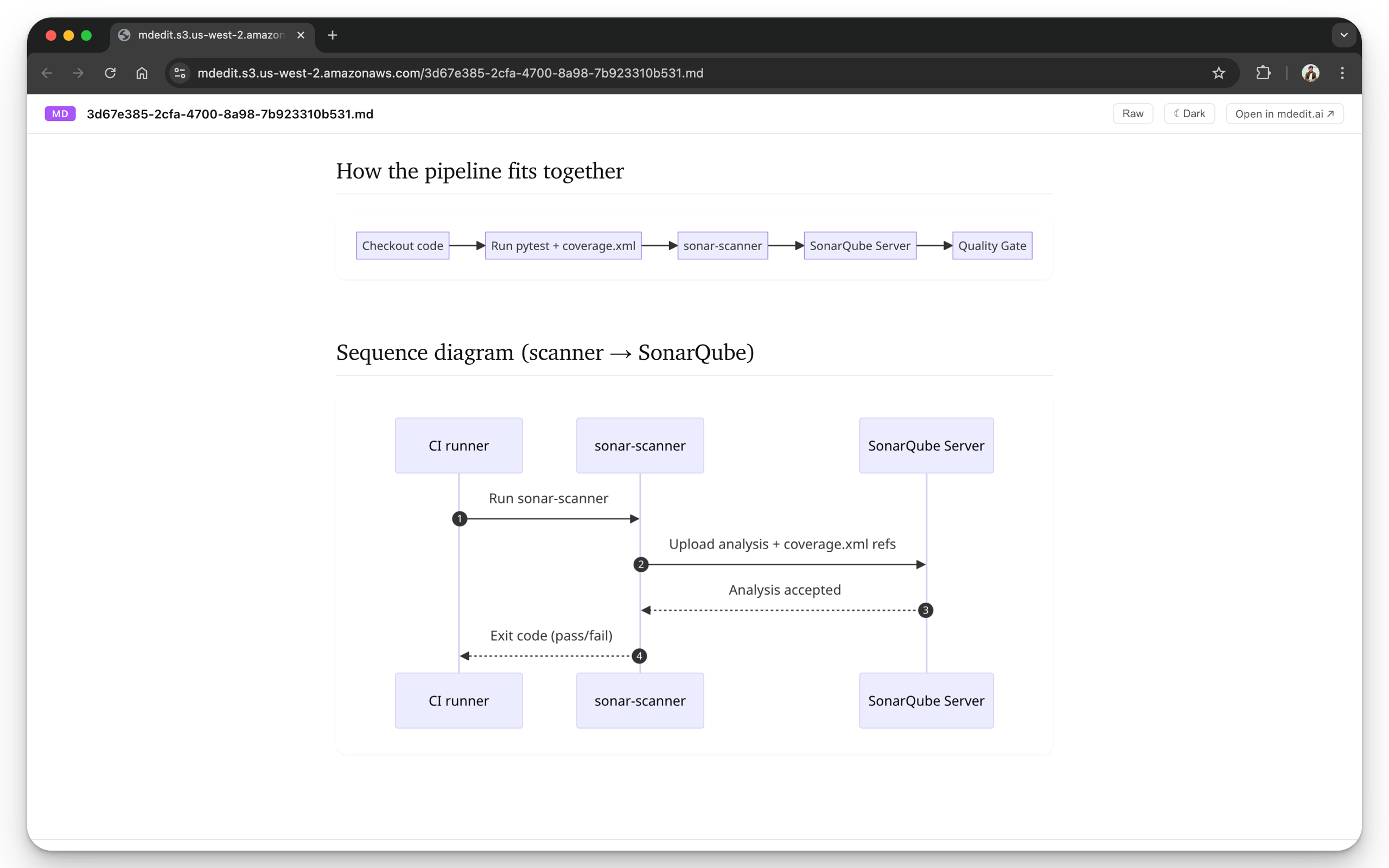
Markdown Viewer & Reader renders Markdown files directly in your browser with a clean reading mode and GitHub-style formatting.
Install
- Chrome Web Store (opens in a new tab)
- Firefox Add-ons (opens in a new tab)
- Microsoft Edge Add-ons (opens in a new tab)
Opera users can install the Chrome Web Store listing in Opera. A dedicated Opera Add-ons listing is still submitted separately.
No install option: use the Scratchpad (no login) (opens in a new tab).
What it’s for
- Reading Markdown (
.md,README.md) without “raw text” pages - Auto-rendering
*.mdURLs you open in the browser - Previewing local Markdown files (
file://) with one-time permissions - Reading and exporting mixed Arabic, Hebrew, and English documents in their natural direction
Writing direction
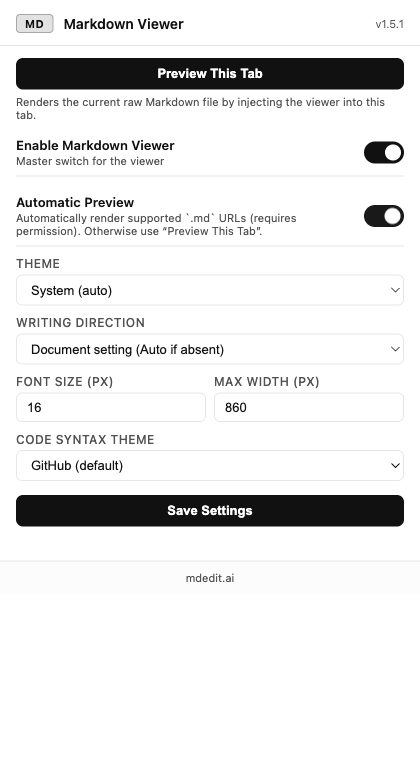
The popup’s Writing direction setting offers Document, Auto, Left to right, and Right to left. Document is the default: it follows mdedit.direction and the optional language value in YAML frontmatter, then uses Auto if the document does not contain a valid setting.
Your choice applies to the rendered document, Raw mode, HTML export, and browser print/PDF. Auto lets each line or section follow the language it starts with. Fenced and inline code stay left to right.
See RTL and bidirectional text for frontmatter examples and a mixed Arabic, Hebrew, and English test document.
How it triggers
Web URLs (http:// / https://)
The extension auto-renders “raw” Markdown URLs (for example anything that ends in .md / README.md).
If you’re on GitHub, prefer the Raw view (or the raw file URL) for the cleanest results.
Local files (file://)
Local files need a one-time browser permission. Follow Extension file access, then open the .md file again.
Permissions & privacy
- The extension reads the current page to render a preview (and may fetch the Markdown from the URL you’re viewing so it can render raw Markdown cleanly).
- It does not upload your Markdown to mdedit.ai servers unless you click an explicit “open in mdedit.ai” link.
Screenshots
Troubleshooting (common issues)
1) Local file rendering doesn’t work
- Chrome/Edge/Opera: enable Allow access to file URLs, then refresh the tab.
- Firefox: enable Automatic Preview, or use Preview This Tab.
2) It doesn’t render a URL I opened
- Confirm the URL is a raw Markdown page ending in
.mdorREADME.md. - If you’re on GitHub, click Raw and try that URL.
3) The page stays plain text
- Hard refresh the tab.
- Disable other Markdown viewer extensions that might be competing.
4) It renders the wrong theme or looks odd
- Toggle theme options in the extension popup and refresh.
- Check Writing direction. Choose Document to follow frontmatter or Auto for mixed-language content without metadata.
- Confirm your system/browser theme settings (light/dark) are what you expect.
5) Conflicts with another Markdown extension
- Disable other Markdown viewer extensions and retry.
- If the issue disappears, re-enable extensions one by one to find the conflict.
Related
- Want preview inside an editor? Use the VS Code extension.
- Want full editing + export + sharing? Start with the Web App overview.
Last reviewed