File exports
Use Download when the recipient needs a file rather than access to the live document.
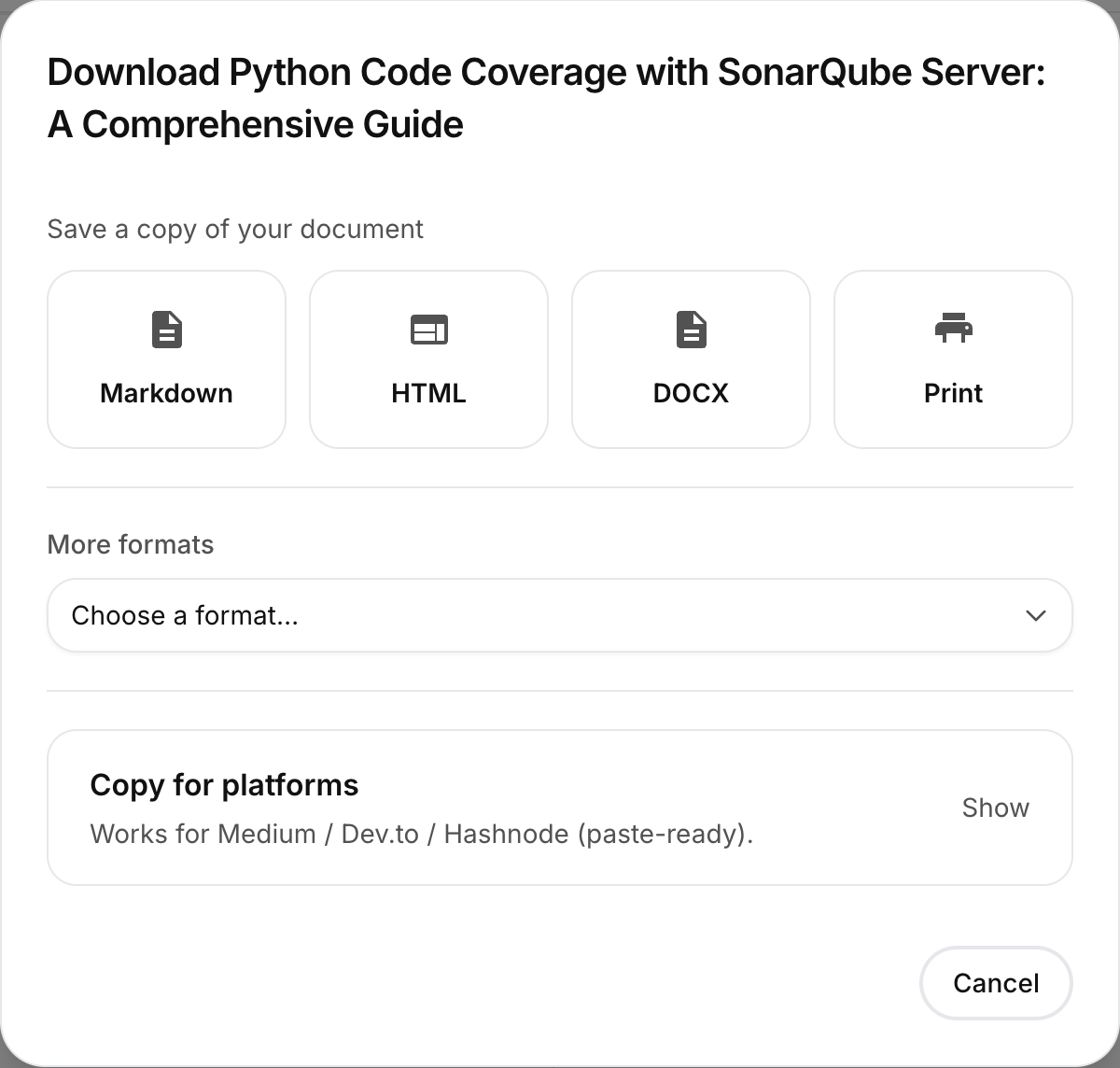
Formats in the Download dialog
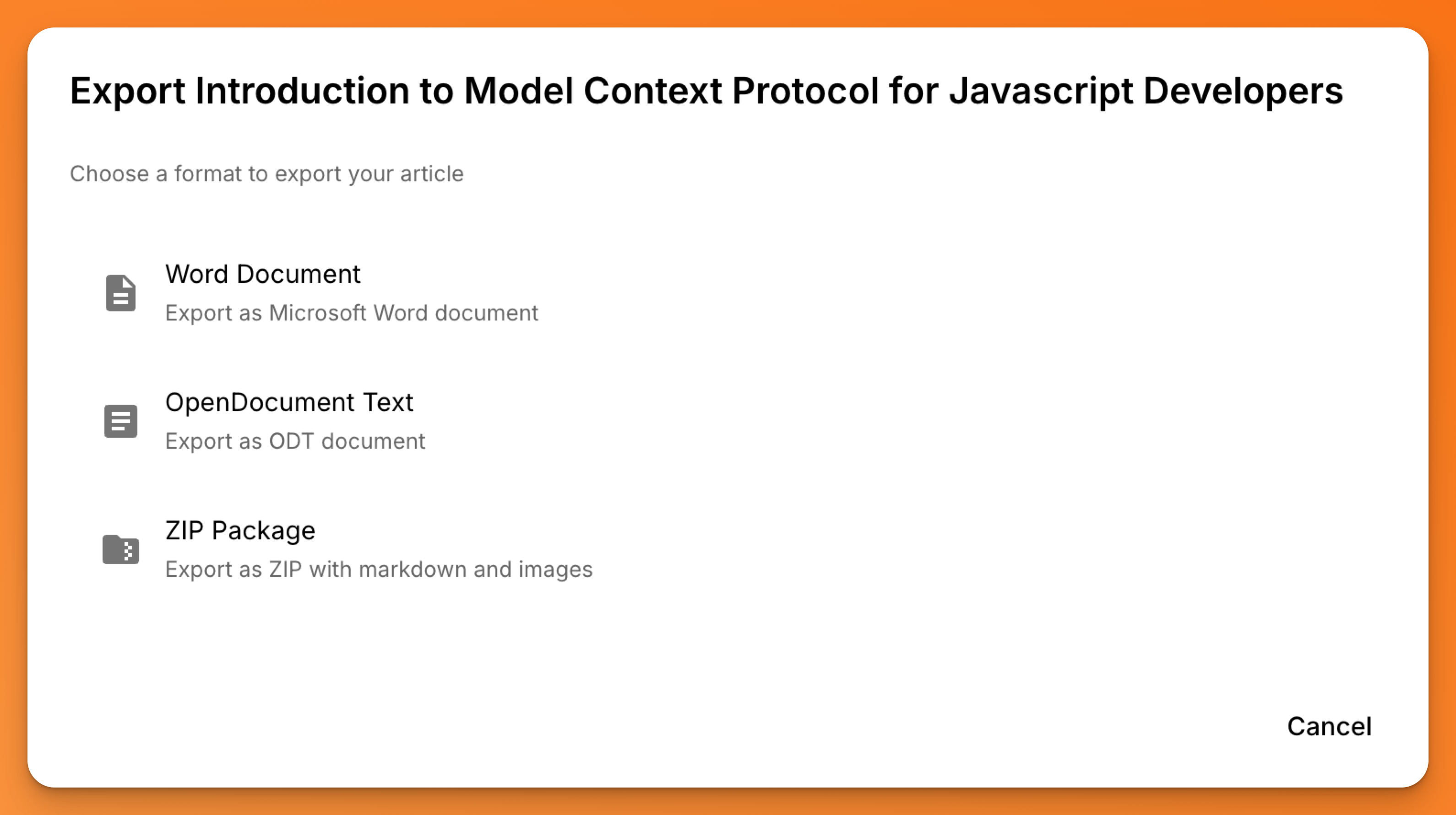
- Core: Markdown, styled HTML, PDF, DOCX, and Print
- Packages: EPUB, ZIP package, and HTML with bundled assets
- Presentations: PowerPoint (
.pptx) - Documents and text: ODT, RTF, plain text, and Jupyter Notebook
- Markup: LaTeX, AsciiDoc, DocBook, MediaWiki, Org Mode, reStructuredText, and Typst
Choose an available format in the Download dialog. If it requires sign-in or a connection, the dialog prompts you before starting the export.
Local and server-backed exports
| Export | Connection and account requirements |
|---|---|
| Markdown with Keep references | Runs from the open document without login or a connection. |
| Styled HTML | Generated in the browser; a connection can be needed to resolve uploaded assets or diagrams. |
| Markdown with signed asset links | Requires a connection; signed links expire after about one hour. |
| Markdown with public asset links | Requires login and a connection because assets are hosted publicly. |
| Markdown or HTML with bundled assets | Requires login and a connection; downloads a ZIP containing the document and media. |
| PDF, DOCX, EPUB, PPTX, ODT, and other server conversions | Require login, a connection, and a synced document. Limited free conversion usage is described in Plans & limits. |
| Opens the browser print flow; use it to print or save as PDF. |
Before a server export starts, mdedit.ai syncs your pending edits so the download includes your latest changes.
Asset choices
- Keep references leaves image and video paths unchanged.
- Signed links replace uploaded assets with temporary private URLs.
- Public links replace them with public hosted URLs; use this only for assets safe to publish.
- Include images & videos creates a portable ZIP with the referenced media.
Resume documents
Documents with mdedit.renderProfile: resume offer Markdown, styled HTML, and Print / Save as PDF. Follow the Markdown resumes guide for the supported workflow.
For access to the document itself, return to Share your work.
Last reviewed