Public links and publishing
Publishing creates or updates a copy of the document outside the collaborative editor. Use Live collaboration when people should edit the source document together.
Create a public hosted link
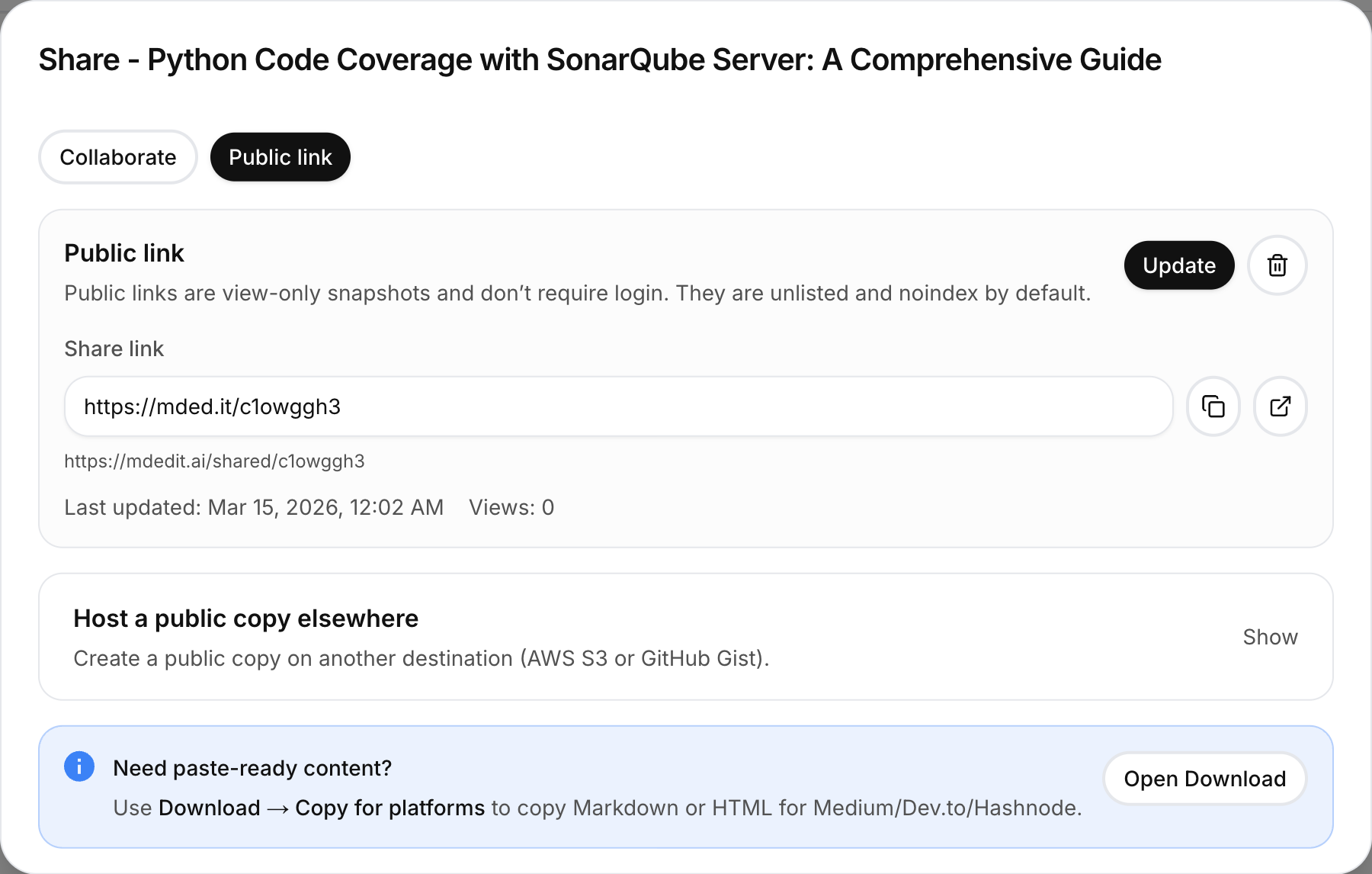
Open Share → Public link. Live is selected by default; choose Snapshot only when you need a fixed copy:
- Live link follows the latest durable document version automatically.
- Snapshot stays frozen until you choose Update snapshot.
mdedit.ai returns a stable, view-only mded.it URL. Existing public links created
before Live mode remain Snapshots until you explicitly switch them. Changing modes keeps
the URL, slug, SEO/social metadata, publication date, and view count.
The Public link tab shows the update status: Live · up to date, Updating, or
Update failed. A failed update leaves the last good public content and Copy link
available. Retry the update to publish your latest changes at the same URL.
Agent-facing CLI and MCP publishing uses the same terms. New agent-created links default
to Live, while --snapshot or mode: "snapshot" creates a frozen artifact. See the
CLI guide or Claude Code MCP guide.
Connected destinations
Open Settings → Integrations → Publishing, choose Add destination, and select:
| Destination | Connection details |
|---|---|
| GitHub repository | Install/connect the GitHub App, then choose the repository, base branch, directory, file naming, and publishing mode. |
| WordPress | Enter the site URL, username, and an application password. |
| Ghost | Enter the Admin API URL and Admin API key. |
| DEV / Forem | Enter an API key and, for a self-hosted Forem instance, its API URL. |
| Hashnode | Enter the publication ID and access token. |
| X Articles | Enter a user access token; the default API endpoint is https://api.x.com. |
| Webhook | Enter an HTTPS endpoint and an optional shared secret. |
Test and save the destination in Integrations. Then open the document’s publishing action, choose the saved destination, review its options, and publish. Later publishes update the same external item when that destination supports updates.
Credentials are stored as account integration credentials rather than in the Markdown document. Remove or reconnect a destination from Settings → Integrations.
GitHub Gist and S3 hosted copies
The Share dialog can also create one-off Markdown or HTML copies on AWS S3 or GitHub Gist. These are separate files: mdedit does not update or remove them later, and they do not gain Live public-link behavior. Open One-off hosted copy, select the format, and create the copy. Before creating a Gist, the dialog shows its filename and lets you choose Public or Secret (unlisted). AWS S3 returns a public hosted file URL. For GitHub Gist, first open Settings → Integrations → Publishing and choose Connect Gists in the GitHub section; Gists are not added through Add destination.
Publishing and server conversion access are summarized in Plans & limits. For downloadable files, see File exports.
Last reviewed