AI writing and agent mode
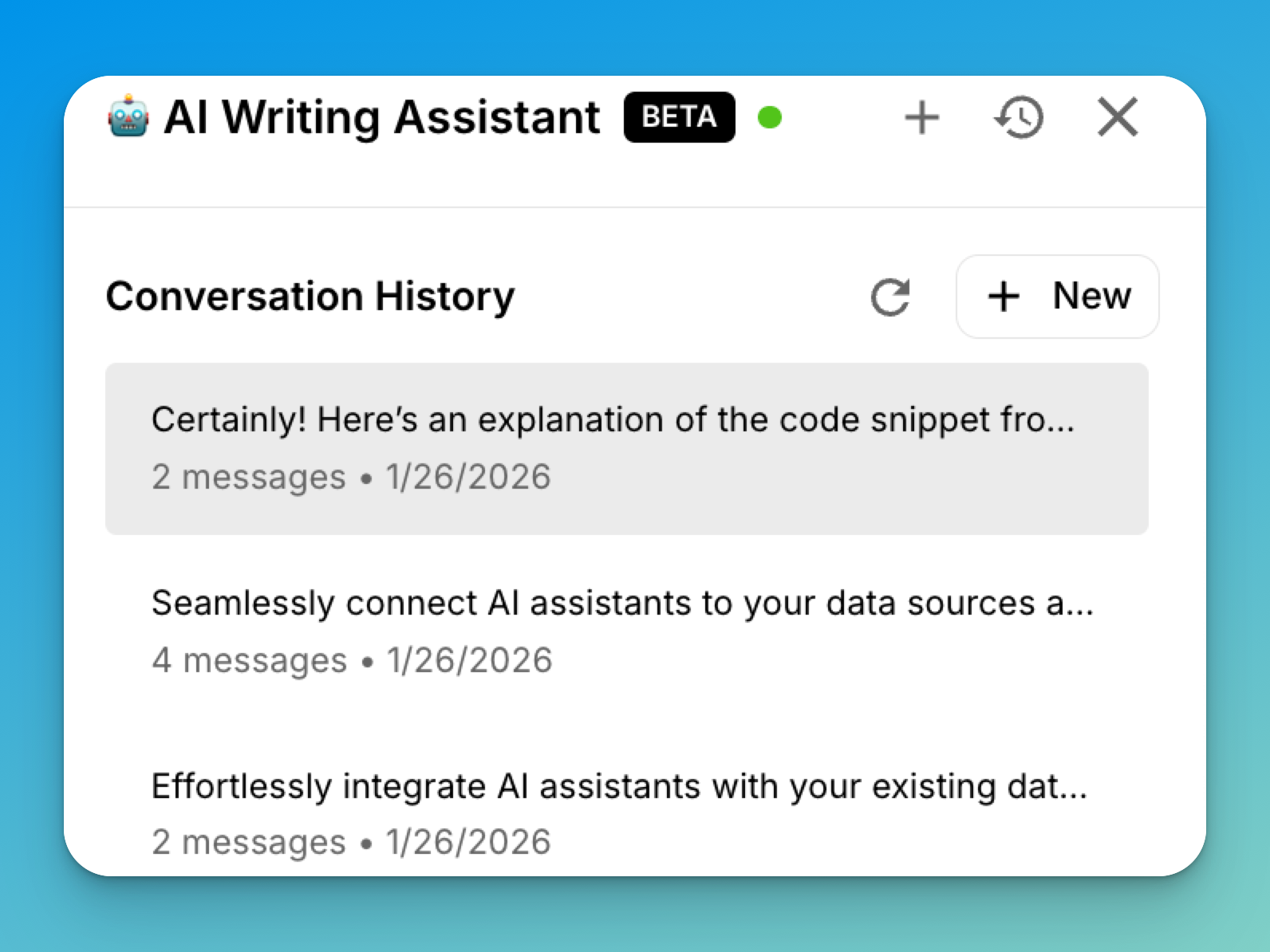
The assistant can rewrite selected text, answer questions about a document, run multi-step workflows, review a draft, take dictation, and help create media.
Quick actions
Select text or open the editor action menu. Actions appear only when their required context is available.
| Category | Actions |
|---|---|
| Writing | Improve, Fix Grammar, Shorten, Expand, Summarize, Continue |
| Code | Explain Code, Add Comments, Refactor, Generate Tests, Prettify Code, Convert Code, Gistify, Screenshot, Identify Language |
| Structure | Outline, To List, To Table |
| Review | Find Issues, Suggest Links |
Rewrites show a diff when appropriate so you can accept or discard the result. Find Issues and Suggest Links start agent workflows and use the agent-run allowance described in Plans & limits.
Assistant modes
Open the AI drawer with its toolbar button or Cmd/Ctrl + Shift + U.
- Auto chooses an appropriate supported mode from your instruction.
- Ask answers a focused question using the current document context.
- Edit rewrites selected text and presents the proposed change for review.
- Create generates visuals when the selected model supports them.
- Agent creates a plan, shows each step on a timeline, pauses for approval when needed, and returns artifacts or proposed document changes.
Agent mode is useful for work such as a structured document review or link audit where several visible steps are safer than a single response. Review the plan and approvals before allowing changes.
AI review
Choose Ask AI to review to add findings as comments and suggestions in the Review rail. You can reply, resolve, accept, or reject them like human feedback. See Review comments.
Voice and media
- Start Dictation from the editor action menu or press
Cmd/Ctrl + Shift + Dto insert spoken text. - Open the media dialog to generate an image with AI.
- Search Giphy, Unsplash, or Pixabay from the same dialog. Stock search has a plan allowance; see Plans & limits.
Choose how AI is funded
- Managed AI: Free includes limited use of managed defaults; Premium includes managed usage subject to fair-use limits.
- Bring your own key (BYOK): Standard uses provider keys saved in Settings → AI Assistant. Supported cloud providers include OpenAI, Anthropic, Gemini, and xAI/Grok; the settings screen is the current model catalog.
- Local AI: Standard and Premium can connect the desktop app to Ollama and OpenAI-compatible private endpoints for supported text workflows. See Local AI.
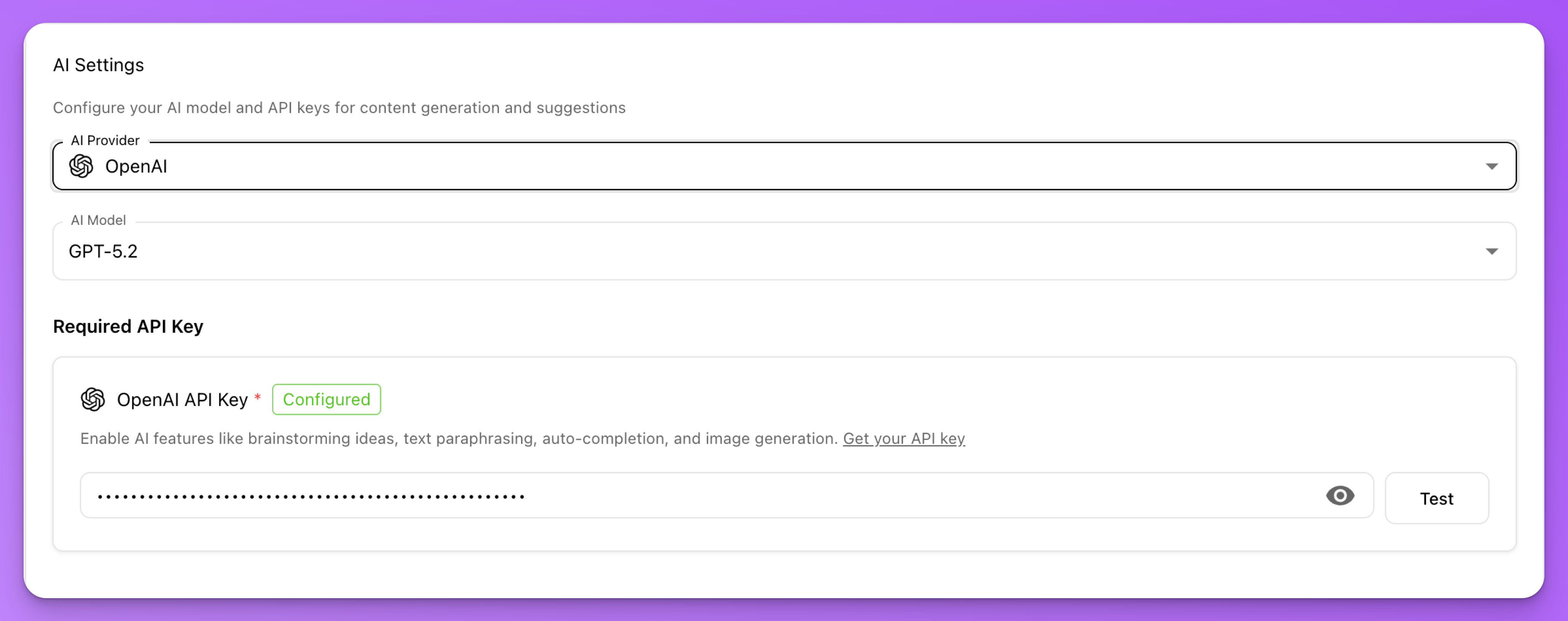
AI runs only when you start an action. mdedit.ai sends the prompt, selected text, and relevant document context to the chosen provider. Store provider keys in Settings, never in a document or chat prompt.
Last reviewed